

How to Turn Off Battery Optimization for an App
You check your phone and notice the 4 a.m. battery discharge event is missing from the timeline. The HighFlow Energy dashboard is showing half an hour of stale data, and no push alert arrived. The battery itself is fine. Your Android phone has stopped giving the app a reliable line to it while the screen was off.
Battery optimisation is the first setting I check in this situation, but it isn't the only one. Android's power controls can sit alongside notification permissions, background data limits, app launch rules, Battery Saver and manufacturer-specific sleep lists. This guide shows how to turn off battery optimisation for an app, how to confirm the exemption held, and when leaving optimisation enabled is the smarter decision.
For a home energy app, delayed data can make a VPP event look like a battery fault when the problem is the phone. Start in Android Settings, not by reinstalling the app. If you need broader guidance about the companion experience, the HighFlow Energy smart home energy app is the relevant place to review how the service connects with your household setup.
When the Home Energy App Stops Talking to Your Battery
A battery dashboard depends on more than the battery and the retailer's platform. The phone must wake the app, permit its network connection, receive notifications and allow background services to continue operating. If Android defers those tasks overnight, the app may display old information even though the home battery is charging, discharging or responding normally.
That's why the symptom is often misleading. A missing notification doesn't automatically mean the VPP dispatch failed, the inverter lost connection or the app is defective. It can mean the phone put the app into a restricted background state while it was idle, stationary and screen-off.
Practical rule: Treat a stale mobile timeline as a phone-settings problem first, then investigate the energy system if the app remains unreachable after testing.
Battery optimisation is usually the first layer to check because Android's exemption setting directly affects whether an app can continue background work. Google explains that the optimisation exemption list applies to both Doze and App Standby, so this isn't merely a cosmetic preference. It changes how Android manages the app's background execution.
The fix varies by Android version and manufacturer. A Pixel uses wording close to standard Android, while Samsung, Huawei, Sony and other brands add their own controls. You may need to remove the app from a sleeping list, enable unrestricted background data or allow automatic app launch as well.
The important sequence is simple:
- Change the per-app battery setting: Use Optimised only for apps that don't need timely background activity.
- Check manufacturer controls: Look for sleeping, deep sleeping, protected or manually managed app lists.
- Test the result: Confirm a new sync or notification arrives after the phone has been idle with its screen off.
That verification step is where most generic guides stop too early. The setting matters, but the outcome matters more.
What Battery Optimisation Actually Does on Android
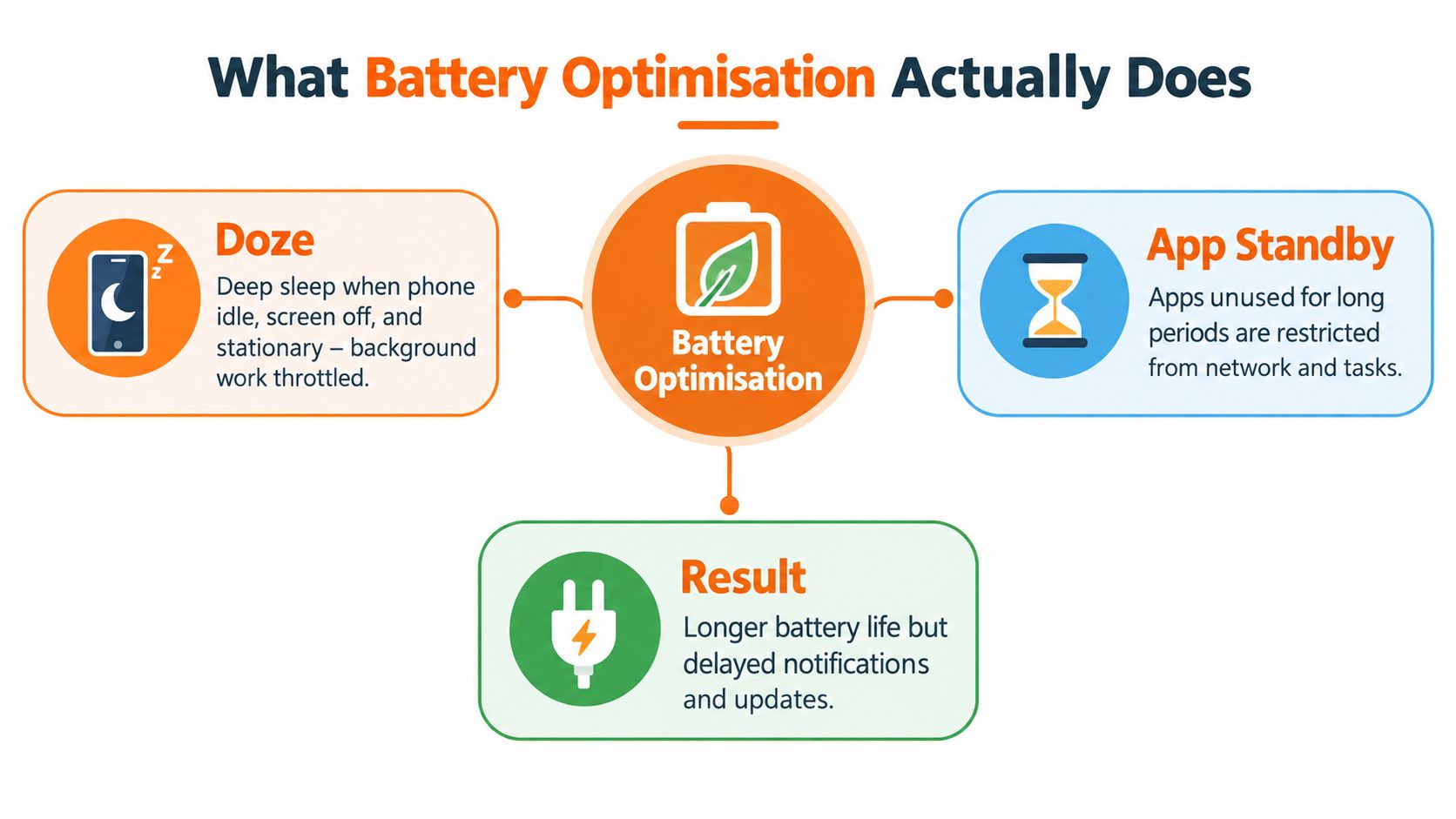
Android's battery controls are built around two related behaviours. Doze is the phone's deeper idle state. When the handset has been unused for a sustained period, with the screen off and little movement, Android reduces background CPU and network activity to preserve standby battery life.
App Standby works at the individual app level. Android can treat an app that hasn't been opened recently as inactive and restrict the opportunities it has to perform background tasks or connect to the network. For a dashboard that needs fresh readings or timely alerts, those restrictions can create a noticeable delay.
Google introduced Doze with Android 6.0, Marshmallow, in 2015, as part of a broader effort to reduce background activity on idle devices. The Android power management documentation explains the relationship between Doze, App Standby and the battery optimisation exemption list.
When you set an app to Don't optimise or Unrestricted, you aren't removing Doze from the phone. You're exempting that particular app from the relevant restrictions. That distinction explains why a user-facing toggle can appear correct while another manufacturer control still prevents background activity.
Google recommends keeping most apps in Optimised mode and using unrestricted access only when necessary. Its Pixel guidance describes Unrestricted as the option that removes limits on how an app uses battery while running in the background, which is useful for apps that need foreground services, real-time push or periodic synchronisation. You can review the Pixel battery usage guidance for the standard terminology.
The trade-off is direct. Restricted background work generally supports longer idle battery life, but it can delay notifications, synchronisation and location updates. Exempting an app improves its opportunity to stay responsive, but it gives that app more freedom to consume power.
Turning Off Battery Optimisation on Standard Android
The label changes between Android releases, so don't stop looking just because your screen says Unrestricted instead of Don't optimise. They represent the non-optimised choice in different versions of the Settings app.
Android 11 and earlier
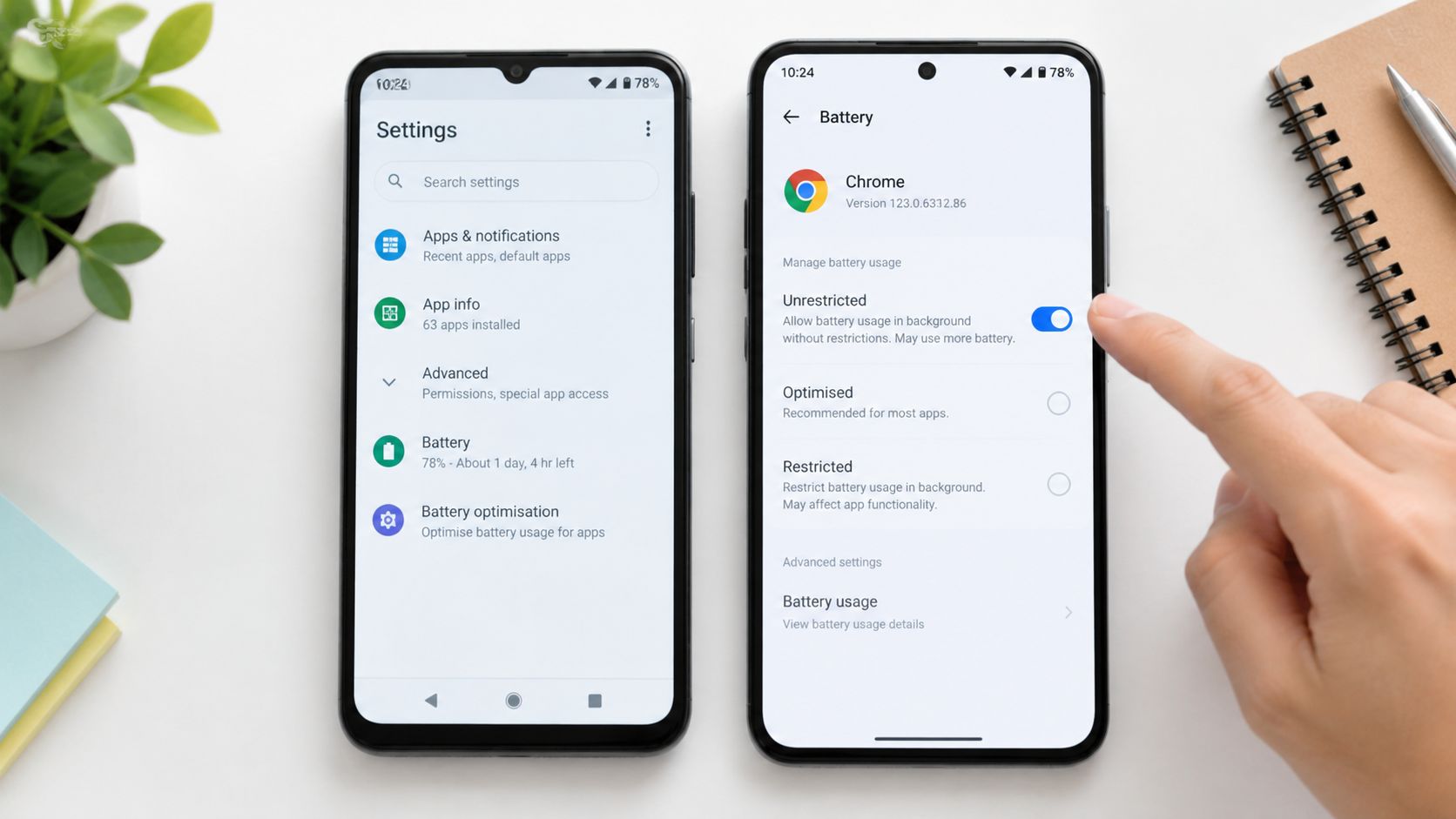
On Android 11, use the system-wide optimisation list:
- Open Settings.
- Tap Apps & notifications.
- Open Advanced.
- Select Special app access.
- Tap Battery optimisation.
- Change the filter from Not optimised to All apps.
- Select the target app.
- Choose Don't optimise.
The Victorian TAC Android battery optimisation guide documents this Android 11 path and the wording used for the exemption. Sony Australia's guidance uses a similar flow, including the move from Not optimised to All apps, before selecting Don't optimise. It also confirms that the setting applies to Doze and App Standby.
Android 12 and later
On Android 12, the shorter per-app route is usually:
- Open Settings.
- Tap Apps.
- Select See all apps.
- Open the target app.
- Tap Battery.
- Choose Unrestricted under background usage.
The available choices are commonly Restricted, Optimised and Unrestricted. Choose Unrestricted only for an app that needs reliable background access.
Pixel devices follow this wording closely. OnePlus and Motorola devices often use a similar Android 12-style path, although menu names can shift after an operating system update. If you're trying to diagnose several Android behaviours at once, a practical SupportGPT Android assistant review may help you identify the right device-specific menu.
The app doesn't need to remain open for the change to take effect. The preference normally survives a restart, but some aggressive battery-cleaning tools can reapply restrictions. If the setting keeps reverting, inspect the phone manufacturer's power manager rather than repeating the same toggle.
What Changes on Samsung, Pixel, Sony, and Other Devices
Android's core setting is only part of the picture on heavily customised phones. Manufacturers rename menus and add background rules that can override or duplicate the standard exemption. Match the phone brand to the control that governs whether the app can sleep.
| Brand / skin | Menu location | Toggle label |
|---|---|---|
| Standard Android and Pixel | Settings > Apps > target app > Battery | Unrestricted |
| Older Android builds | Settings > Apps & notifications > Special app access > Battery optimisation | Don't optimise |
| Samsung One UI | Settings > Battery and device care > Battery > Background usage limits | Never sleeping apps, alongside Unrestricted |
| Sony Xperia | Settings > Battery usage > Battery optimisation | Don't optimise |
| Huawei-style interface | Settings > Battery > App launch | Manage manually, then permit background activity |
Samsung deserves extra attention. Set the app to Unrestricted under its app battery page, then inspect Background usage limits. If the app sits under Sleeping apps or Deep sleeping apps, remove it. Samsung's power manager can keep applying a sleep rule even when the standard Android screen appears correct.
Pixel is closest to stock Android. Check the app's Battery page and Adaptive Battery behaviour, then make sure the app hasn't been restricted after a long period without being opened. Pixel's interface is simpler, but it still prioritises battery preservation for infrequently used apps.
Sony combines the standard optimisation screen with its own battery features. STAMINA mode and Battery Care are separate from the app exemption, so inspect App optimisation if the app still misses updates. Sony's Australian help article provides the device-specific battery optimisation flow.
Huawei-style interfaces, including EMUI and related designs, commonly use App launch. Choose the app, switch off automatic management and allow the relevant background activities manually. Xiaomi and Oppo phones also add their own protected-app, autostart or background activity controls, so search Settings for those terms if the app continues to sleep.
The labels differ, but the underlying question stays the same: is the app unrestricted in Android, and is the manufacturer's power manager allowing it to run?
Confirming the App Stays Reachable in the Background
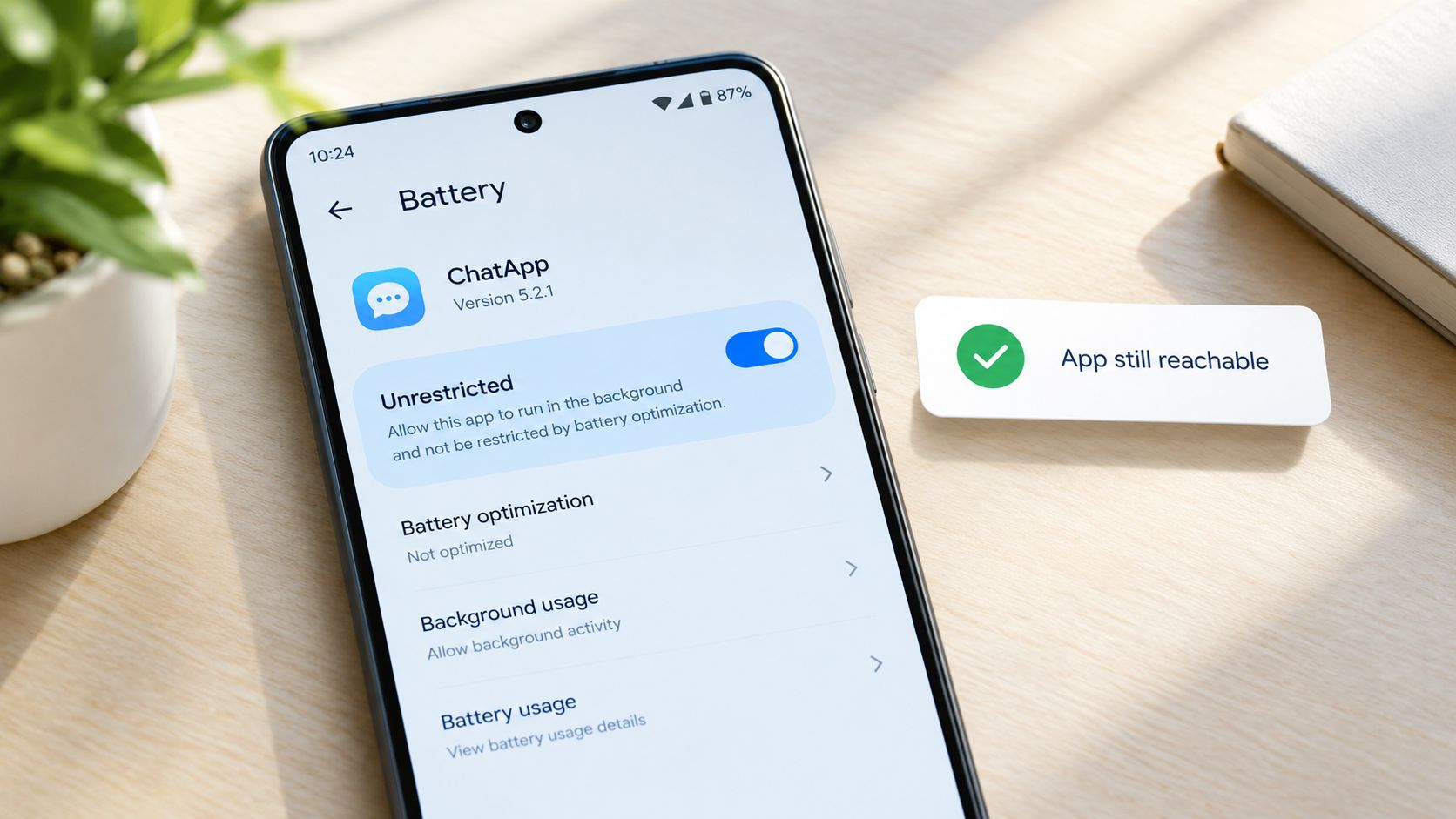
Changing the setting is only half the job. An Unrestricted label is a strong signal, not proof that every layer of the phone will permit background activity. Firmware updates, extended disuse and manufacturer power managers can restore restrictions.
Start with a settings check. Reopen the target app's Battery page and confirm it shows Unrestricted, not Optimised or Restricted. On Samsung, also check that the app isn't listed under Sleeping apps or Deep sleeping apps. On Huawei-style devices, revisit App launch and confirm automatic management hasn't returned.
Then run a real standby test rather than opening the app repeatedly. Use this sequence:
- Open the home energy app and let its current timestamp load.
- Lock the phone with Wi-Fi stable and the screen off.
- Leave it untouched for a sustained period.
- Check whether the last sync timestamp advances.
- Confirm that a scheduled event or notification arrives when expected.
For an energy dashboard, test both notification delivery and data freshness. A notification can work while background synchronisation remains stale, so check both outcomes.
Advanced users can use Android's developer tools to inspect device idle state. Commands such as dumpsys battery and dumpsys deviceidle can help confirm whether the app is on the active whitelist, but they aren't necessary for most households and should be treated as diagnostics, not everyday settings.
If the test fails, remove conflicting OEM rules, check background and unrestricted data, restart the phone and repeat the test. Reinstalling the app should be a later step, not the first response. Keep the HighFlow Energy technical troubleshooting resources available if the phone remains reachable but the dashboard itself doesn't update.
When Leaving Optimisation On Is the Better Call
Unrestricted access shouldn't be your default setting. Give every app that freedom and your phone may stay warm in your pocket, use more background data and lose standby charge faster. Android's optimisation exists for a reason, and social, shopping, news and game apps rarely deserve continuous background access.
For most households, I reserve the exemption for apps where delayed background activity creates a real problem. A home energy app may need timely status updates, a messaging app may need dependable alerts for two-factor authentication, and an authenticator may support an important sign-in workflow. Everything else can usually remain Optimised.
The Australian battery-drain discussion from CTF Mobile Phones and Computer Repairs is useful context because it points readers towards background activity, notifications, downloads and location use as practical sources of drain. Disabling optimisation doesn't make an inefficient app efficient. It removes one set of Android restrictions.
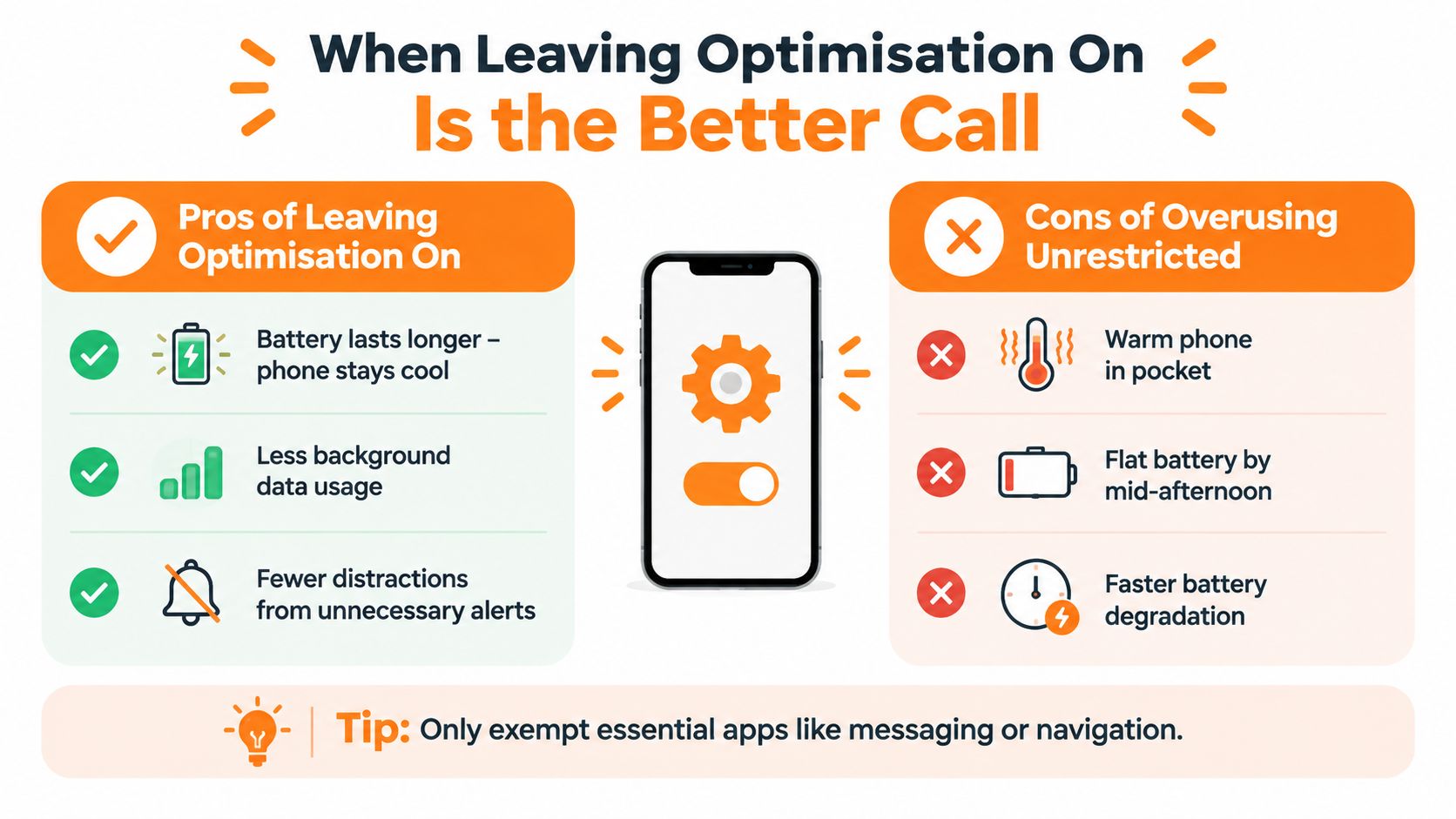
Use this decision test:
- Exempt essential apps: Choose Unrestricted when delayed alerts, sync or control would affect a service you actively rely on.
- Keep casual apps Optimised: Social feeds, games and shopping apps don't need constant wakeups for most users.
- Watch the battery after changing the setting: If the phone becomes warm or standby performance worsens, reverse the change and test again.
- Remember Battery Saver: A low-battery mode can still impose broader restrictions, even after you exempt an individual app.
The right choice is a risk decision. Prioritise reliability for critical controls, then let Android manage everything else.
Bringing It Together for Your VPP Setup
Battery optimisation is one switch in a larger background-access stack. For a home energy app to remain useful during a VPP event, check notifications, background data, automatic launch permissions and the manufacturer's protected-app list as well as the battery setting.
A practical setup sequence looks like this:
- Notifications: Permit the app's alerts, including any categories used for dispatch, connection or battery status.
- Background data: Allow background data on Wi-Fi and mobile data where the app needs both routes.
- Alarm access: If the device requests exact alarm permission for scheduled activity, review and allow it when the app's operation requires that capability.
- Autostart and protection: Add the app to the protected or never-sleeping list on phones that offer one.
- Battery access: Set the app to Unrestricted on newer Android versions, or Don't optimise on older versions.
- Standby test: Lock the screen and confirm that synchronisation and notifications continue.
Australian phone owners in Queensland and New South Wales should also review the service's technical requirements before connecting a battery to a VPP. The HighFlow Energy system integration requirements provide the relevant compatibility and connection information.
These settings can drift after an operating system update or a battery-saving session. Add a quick check to your monthly energy routine, especially if a dashboard timestamp looks stale or an expected notification doesn't arrive. It should be a one-evening setup, followed by occasional verification, not a daily maintenance task.
For context, HighFlow Energy is an Australian electricity retailer and VPP operator that connects eligible existing solar and battery systems to coordinated grid services, while the household retains ownership and priority use of its stored energy. The app supports automated charge and discharge planning alongside manual control, so dependable background access matters when you want current system information and control options.
If you already own a compatible solar and battery system in Queensland or New South Wales, visit HighFlow Energy to check eligibility and assess whether your battery and phone setup are ready for coordinated VPP operation. Reviewing the connection requirements now can help you understand how your existing energy asset may perform under the available electricity service.